
Instant file transfer
Send files over Wi-Fi, without cloud or account.
Why choose FileDrop?

Quick transfers
Send files between your devices in seconds, without uploading to the cloud, up to 5x faster than traditional methods.
Privacy-first
No account required. Files are transferred directly over your local Wi-Fi network, ensuring your data stays private.
Super simple
Just open the app, select your files, and choose the target device. No complicated setup or configurations needed.
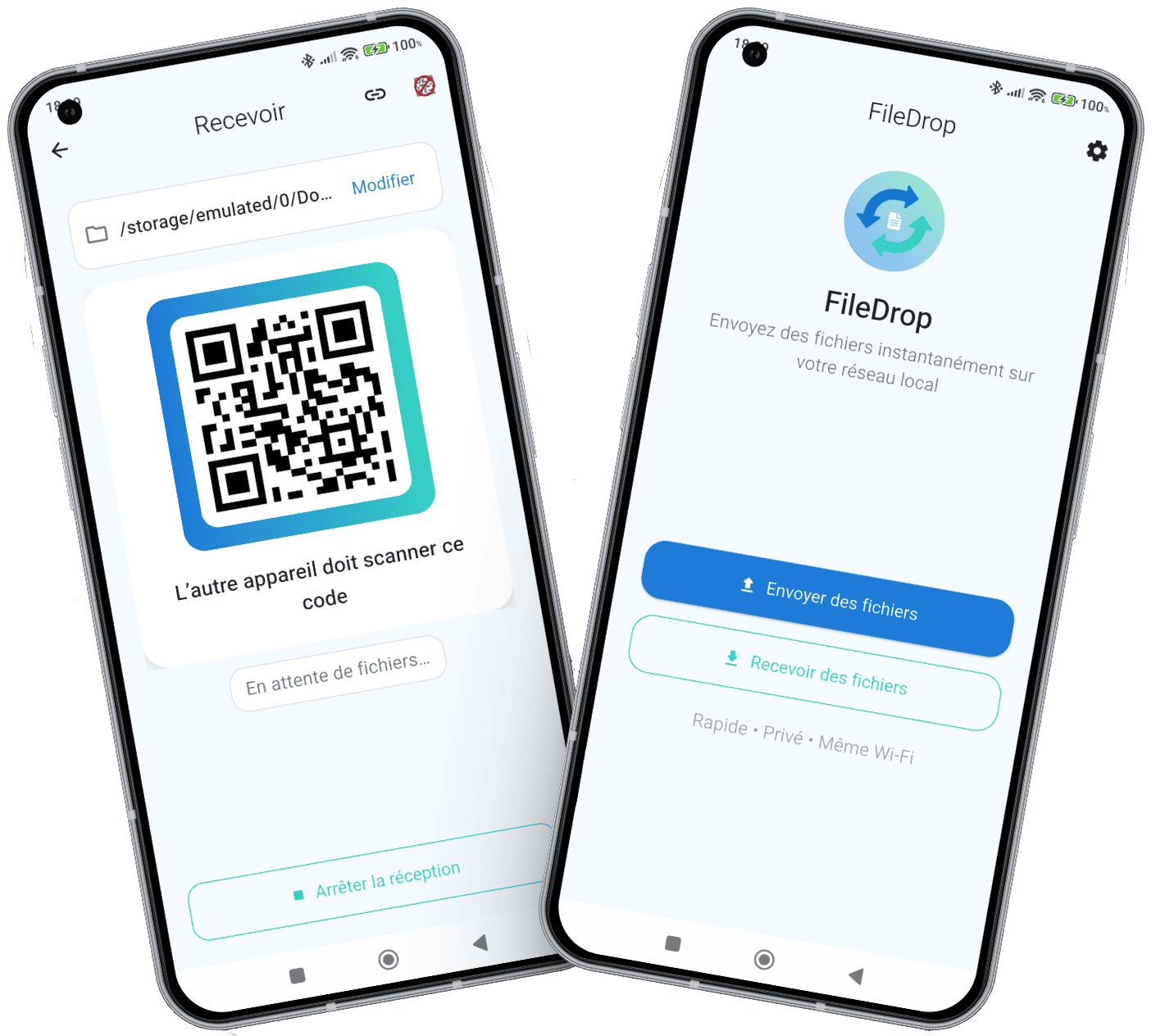
FileDrop: send files over WiFi, no cloud, no account
FileDrop transfers photos, videos and files between devices on the same WiFi network. No cloud, no account, no cable: your files stay on your local network.
It takes four steps: open FileDrop on both devices, tap "Receive" on one of them, scan the QR code, then send. With no complicated setup, transfers are fast and reliable.
FileDrop is ideal for sending photos from one phone to another, sharing files with a computer, or moving videos without USB or Bluetooth. The app is available on Android, Windows and Linux.
FileDrop frequently asked questions
How do I send photos from one Android phone to another without a cable?
Install FileDrop on both phones, connect them to the same Wi-Fi, tap "Receive" on one, scan the QR code with the other and send: no cable, no Bluetooth, no cloud.
How do I send files from my phone to my PC without a cable?
Use FileDrop on the phone and on the computer (Windows or Linux): no USB cable, no Bluetooth, no cloud. You just need to be on the same Wi-Fi network.
Is FileDrop really faster than Bluetooth or the cloud?
Transfers go straight through your local network, with no upload then download, and are advertised as up to 5 times faster than traditional methods.
Can I send large files like videos?
Yes. By default there is no per-file size limit, so you can send long videos as easily as photos.
The connection fails: what should I check?
Make sure both devices are on the same Wi-Fi network (not on separate guest networks), then type the receiving device's address manually if the QR code does not work.
Are my files stored on a server?
No, they only travel over your local network: no account, no cloud storage and no tracking.
You might also like




Downloads

Desktop client
Easily send and receive files from your computer with our desktop client.
 Download for Windows