
Light in any color
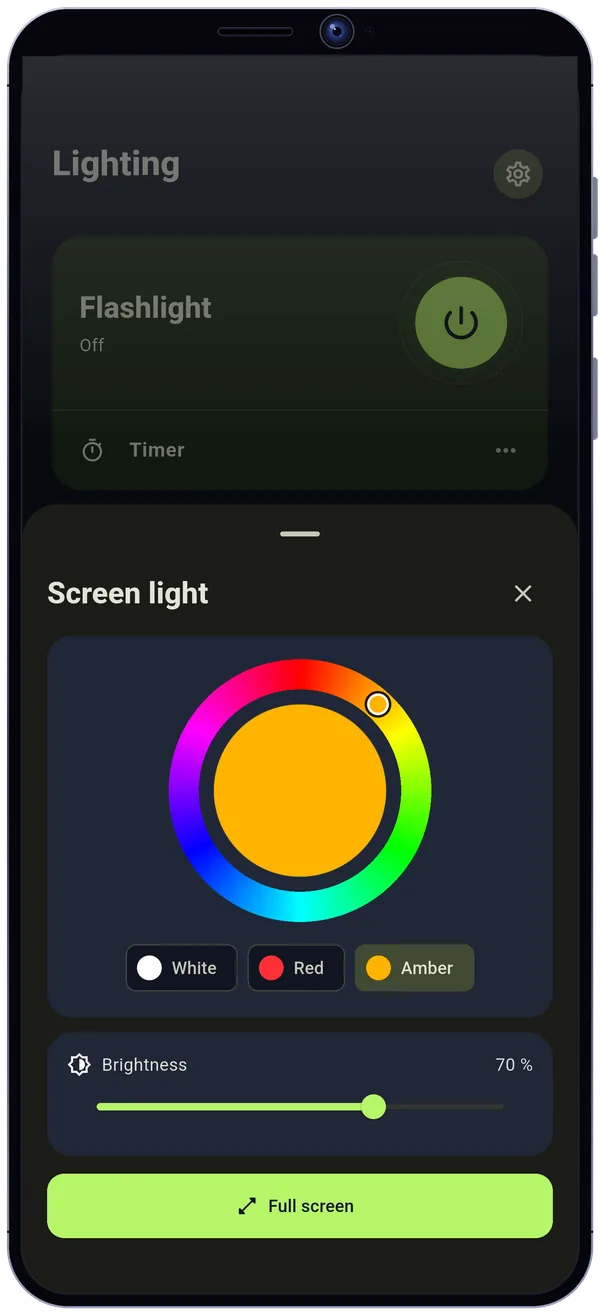
White, red, amber or any hue you like, with adjustable brightness. Try it here, the app fills the whole screen.
 Flashlight
Find what you dropped in the dark, hold up a name at a pickup point, or turn your screen into a soft light. Four tools available right from the home screen, with no account and offline.
Try the LED banner
Simplified preview: in the app, the banner fills the screen in landscape and the text fits the available space.
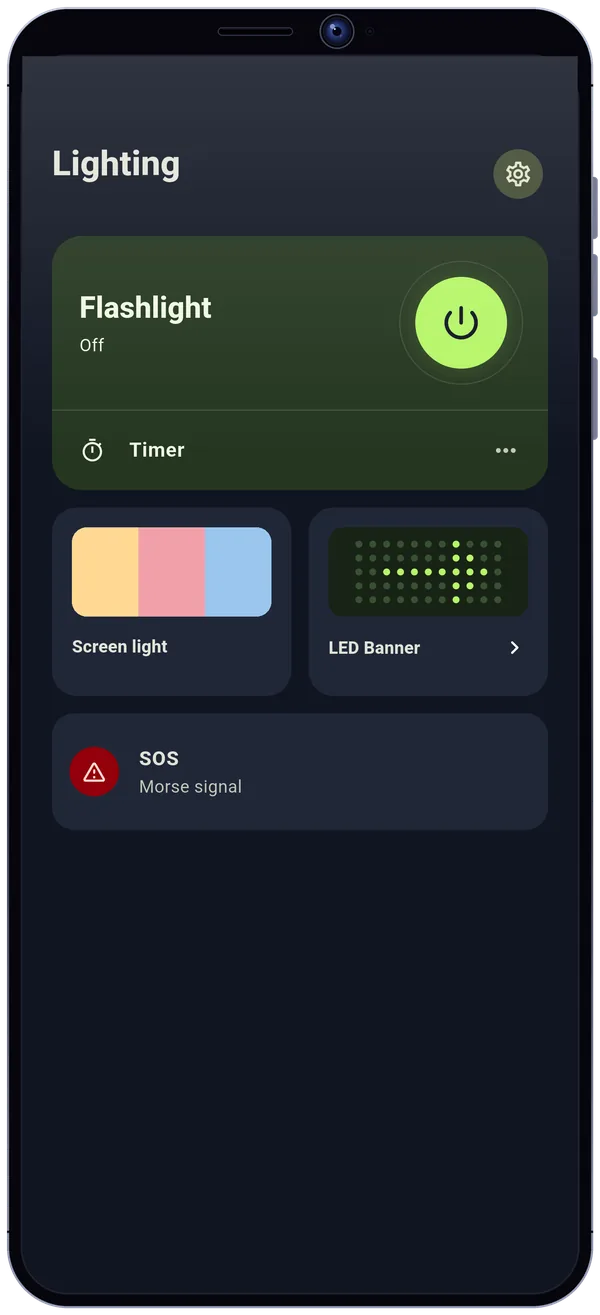
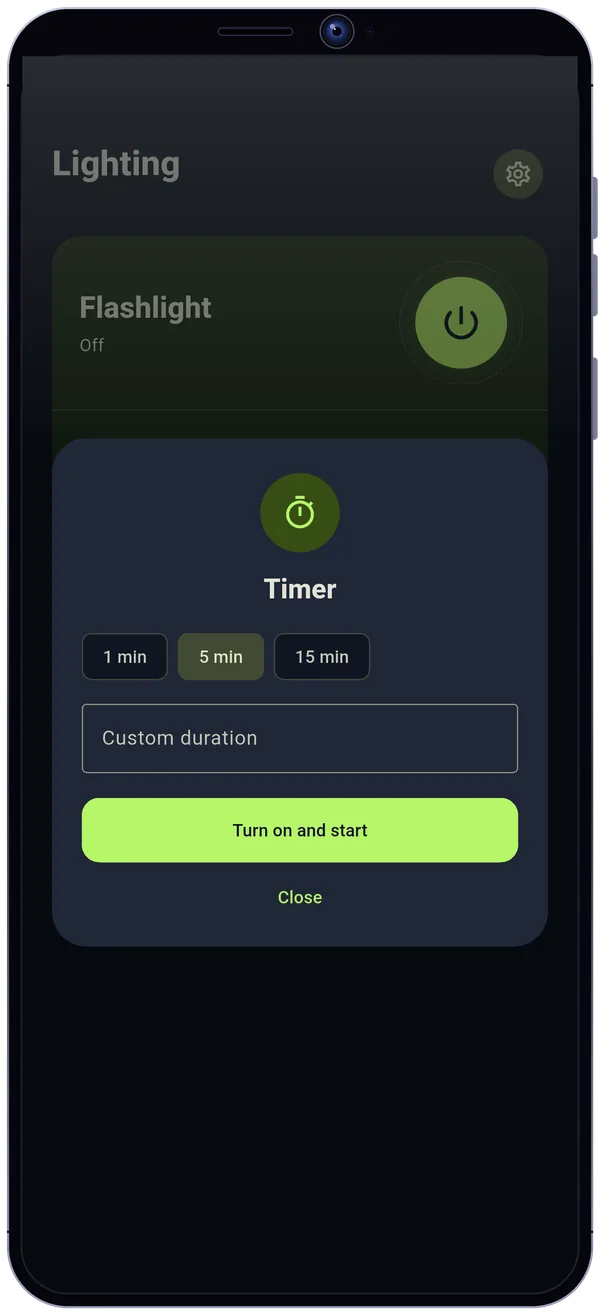
Switch on your phone's rear flash on supported devices. Set it to turn off after 1, 5, or 15 minutes (or anywhere from 1 to 1,440 minutes), or add a widget to control it from your Android home screen. The flashlight stays on while the screen is locked until you stop it or the timer ends.
Pick white, red, amber, or a custom color. Set the brightness and fill the display with light: the screen stays on while it is shown.
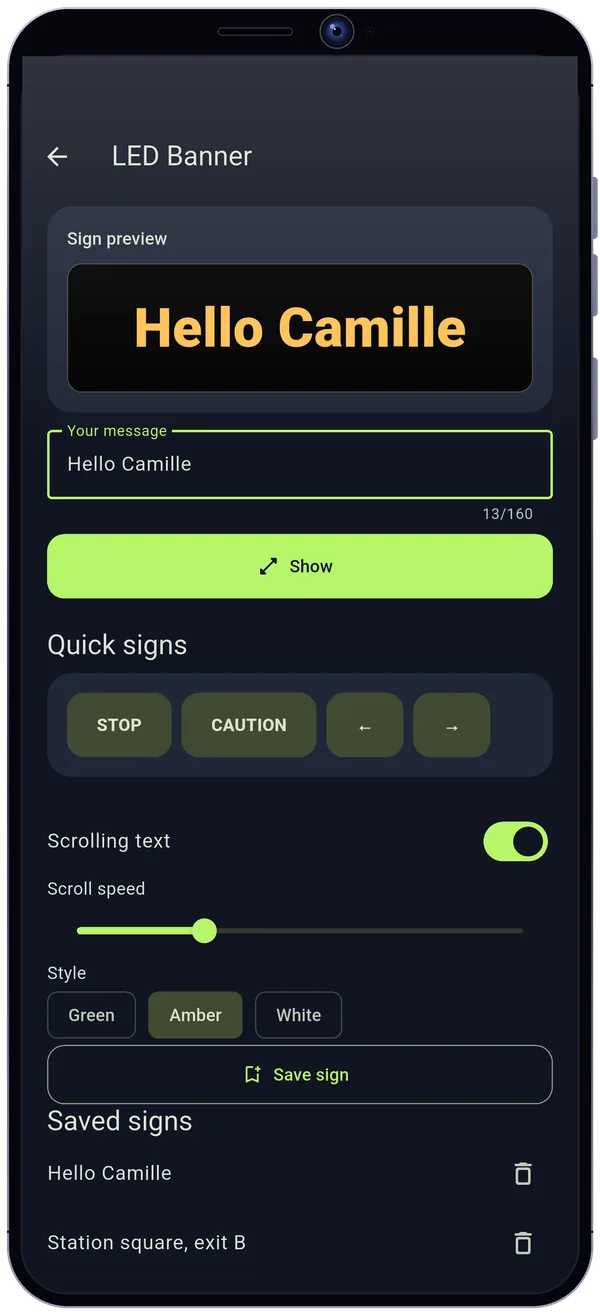
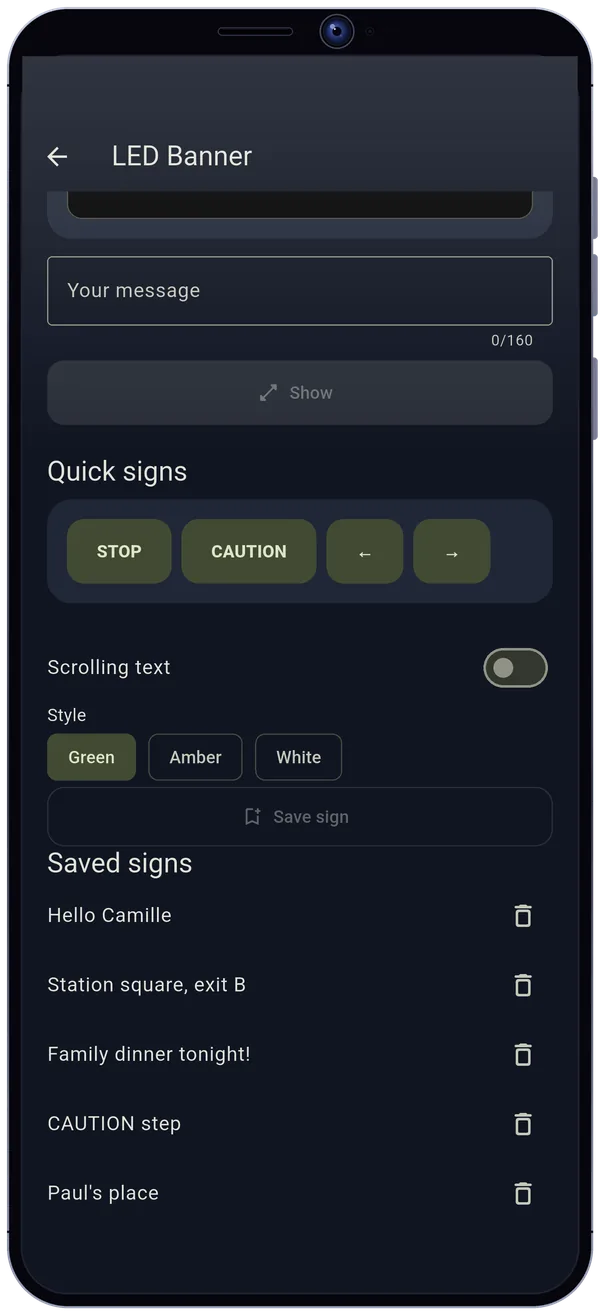
Type a message and show it in large text across the screen in landscape. Use the STOP, CAUTION, or arrow presets when you need a sign right away.
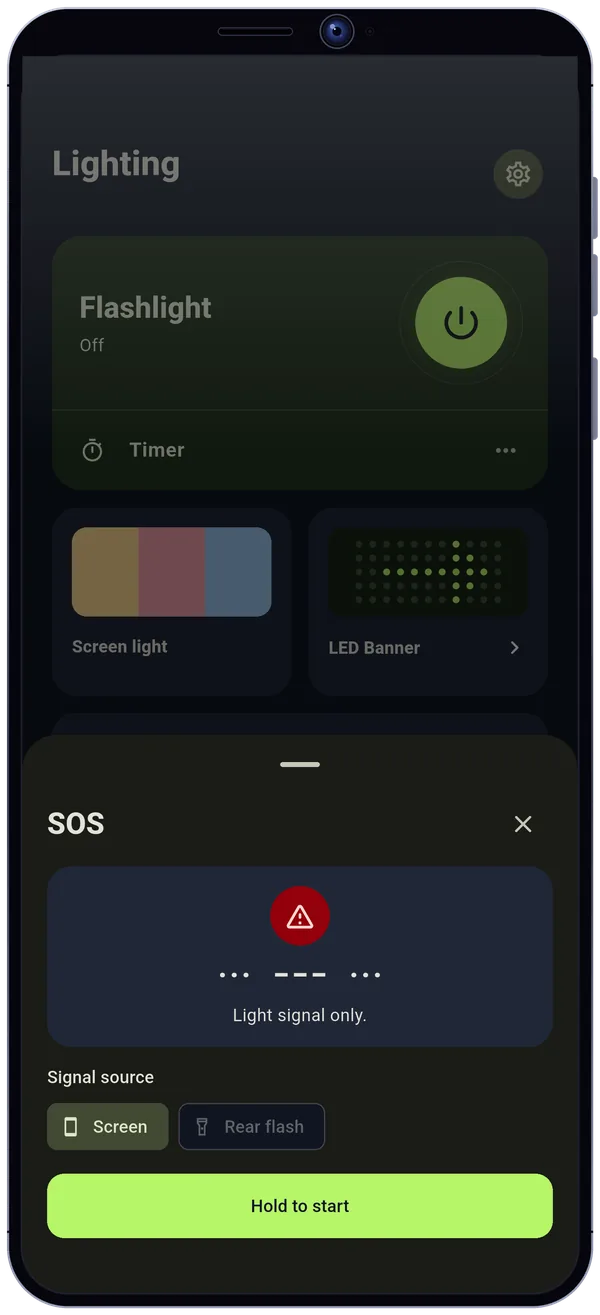
Press and hold to flash the SOS pattern using the rear flash or the display. This mode only sends a light signal, silently.
White, red, amber or any hue you like, with adjustable brightness. Try it here, the app fills the whole screen.
Press and hold to send the ··· −−− ··· signal with the rear flash or the display. A quick tap starts nothing: you have to hold, and a single gesture stops it.
Light signal only.
On-screen demonstration: in the app, the signal comes from the rear flash or the display.
No account to create: your text is processed on the device.
The four basic tools work offline without an account. Your text is not sent to any service.
In Settings > My data: back up, restore and delete saved signs, with an optional passphrase to protect the file. Depending on your settings, Android may include saved signs in its backup.
The free version may show a banner (Google AdMob, after your consent where it is required) and recommend other Clearforge apps on the home screen. Panel Pro removes both.
No usage analytics tool. Crash reports are optional and off by default.
A one-time Google Play purchase, no subscription.
Flashlight is a lighting and light-signalling tool: the SOS mode only sends a light signal, it does not call or alert anyone.
Flashlight is an Android flashlight app: it switches on the rear flash in one tap, with an automatic shutoff timer of 1, 5 or 15 minutes (or anywhere from 1 to 1,440 minutes) and a home screen widget. It also offers a colored screen light (white, red, amber or a custom hue), an LED banner to show a message in large text in landscape, and a Morse SOS that only sends a light signal.
The four basic tools work offline without an account, and your text is processed on the device. You can export or delete saved signs in Settings, with an optional passphrase to protect the exported file.
The free version may show a banner and recommendations for other Clearforge apps on the home screen. Panel Pro, a one-time Google Play purchase, removes these promotions and adds adjustable scrolling text, extra styles and the option to save signs for later.
Open Flashlight and tap the Flashlight button: the rear flash switches on on supported phones. You can also add the widget to your home screen.
Choose a timer of 1, 5 or 15 minutes, or a custom duration from 1 to 1,440 minutes. The flashlight stays on while the screen is locked until the timer ends or you stop it.
Open LED banner, type your text and tap Show: it fills the screen in landscape. The STOP, CAUTION and arrow presets are ready to use.
Press and hold the button to send the ··· −−− ··· signal with the rear flash or the display. This mode only sends a light signal.
No. The four basic tools work offline without an account, and your text stays on your phone.
The app tells you the flash is unavailable and offers the screen light instead. The SOS can also send its signal with the screen.
Yes, with a banner and recommendations for other Clearforge apps on the home screen. Panel Pro is a one-time Google Play purchase: it removes these promotions and adds adjustable scrolling text, extra styles and the option to save signs for later.
On Google Play: tap the Google Play button on this page. The app is available in English and French.